Rankadmain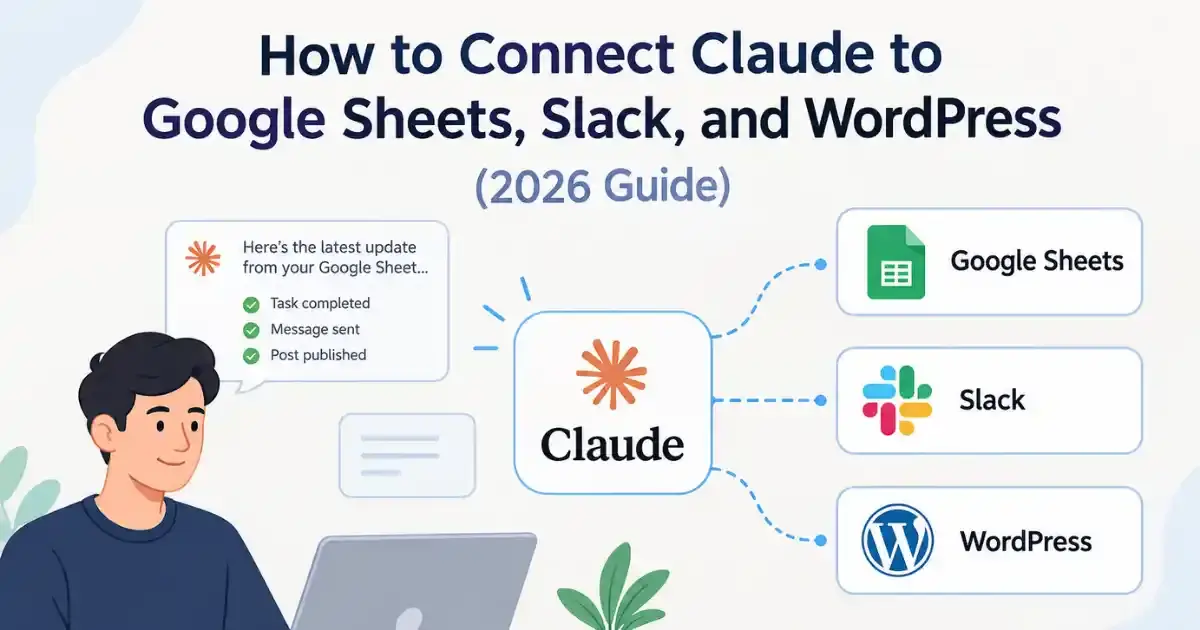
Oct 15, 2026 · @Rank Button
You can connect Claude to Google Sheets, Slack, and WordPress, but the three setups work in very different ways. Sheets is mostly an add-on or a file-based job, Slack has an official app plus a connector, and WordPress needs an MCP plugin installed on your site.

I wrote this guide for people who want Claude to do real work inside their daily tools instead of copying and pasting between tabs. Below you will find the steps for each tool, the spots where things usually go wrong, and a simple way to pick the setup that fits you.
If you are new to how AI-powered search works, our guides on what answer engine optimization is and the difference between AEO, GEO, and SEO give useful background before you start.
The short version
- Google Sheets: install the Claude for Sheets add-on, upload a CSV for one-off analysis, or use an MCP server in Claude Desktop if you want Claude to read and write cells.
- Slack: add Claude to your Slack workspace as an app, then optionally turn on the Slack connector so Claude can search your channels from claude.ai.
- WordPress: install an MCP plugin on your site, then connect it to Claude with OAuth or an application password.
- Your plan matters. Some of these connections need a paid Claude plan, and Slack also needs a paid Slack plan for the app.
What “connecting Claude” actually means
Connecting Claude means giving it a controlled way to read from, or act inside, another app. That bridge usually takes one of three forms.
- A connector. This is a built-in or directory integration. In Claude, you open Settings, go to Connectors, click Connect next to the service, sign in, and approve the permissions.
- An MCP server. MCP stands for Model Context Protocol, an open standard that lets AI tools talk to outside apps. If a service has no ready-made connector, you can add a custom connector by pasting its remote MCP server URL.
- An add-on or app. Claude for Sheets and Claude in Slack live inside the other product, so you work with Claude without leaving it.
One thing worth knowing early: availability changes by plan. Connectors work on most paid plans, and free accounts have been limited to a single custom connector. Anthropic updates this often, so check the Connectors page in your own account before you plan a workflow around it.
The golden rule for all three setups is the same. Give Claude the smallest amount of access that gets the job done, and test on a copy of your data first.
For the technical background, the Model Context Protocol website explains the open standard in detail, and Anthropic’s guide to getting started with connectors covers the setup screens inside Claude.
How to connect Claude to Google Sheets
There is no single “right” way to connect Claude to Google Sheets. The best route depends on whether you want a quick analysis, formulas inside the sheet, or full read and write access.
Option 1: The Claude for Sheets add-on
This is the easiest route if you want Claude inside the spreadsheet itself.
- Open Google Sheets and go to Extensions, then Add-ons, then Get add-ons.
- Search for Claude for Sheets in the Google Workspace Marketplace and install it.
- Approve the permissions Google asks for.
- Open the add-on from the Extensions menu. The sidebar should load after a few seconds.
From there you can run prompts on your cells, which is handy for cleaning product descriptions, tagging keywords, or summarizing rows of feedback.
Option 2: Upload a CSV for one-off analysis
If you only need a single answer, skip the setup. In Sheets, choose File, then Download, then CSV. Drag that file into a Claude chat and ask your question. Claude reads the file directly and can count, filter, and spot patterns. It is also the safest option, because Claude only sees the one file you chose.
Option 3: The Google Drive connector
Claude has a native Google Drive connector, and some guides recommend it for regular analysis. Be careful, though. Sources disagree on how well it handles spreadsheets. One independent tester reports that Claude can see a sheet’s file name but not the data inside it. Test it with a small dummy sheet before you rely on it, and fall back to a CSV upload if the cell data does not come through.
Option 4: An MCP server in Claude Desktop
Choose this if you want Claude to read, write, and update cells with plain-language instructions. It takes more work, and it suits people who are comfortable with a bit of configuration.
- Install the latest Claude Desktop app on macOS or Windows.
- Create a free project in Google Cloud Console.
- Enable both the Google Sheets API and the Google Drive API. Skipping the Drive API is the most common reason for a 403 permission error.
- Create OAuth credentials for the project.
- Install the uv package manager, then add the Google Sheets MCP server to your Claude Desktop configuration file.
- Restart Claude Desktop, sign in with Google when the browser opens, and test with a prompt like “List my Google Sheets.”
Option 5: A third-party data connector
Tools such as Coupler.io, Windsor.ai, and CData Connect AI sit between Sheets and Claude. They add a layer that prepares or syncs your data, which helps when you pull from several sources at once. Most have free tiers, but they are separate accounts to manage.
If you go the MCP route, you will create your project and credentials in the Google Cloud Console. Already comfortable with chat-based automation? Our walkthrough on connecting Claude AI to WhatsApp uses a similar idea.
How to connect Claude to Slack
Claude and Slack connect in two different ways, and people often mix them up. One puts Claude inside Slack. The other lets Claude search Slack from the Claude app.
Way 1: Add Claude to your Slack workspace
This is the version where you chat with Claude in a DM, mention it in a channel, or open it from the AI assistant panel. Anthropic’s documentation says it is available to people on paid Slack plans.
- A Slack admin opens the Slack App Marketplace and finds the Claude app.
- Click Add to Slack and approve the permissions.
- Back in Slack, find Claude in your apps list, start a new chat, or @mention it.
- Optional: add Claude to the Slack header from the three-dot menu so it is one click away.
If you cannot install it, the usual cause is that your Slack admin has not approved the app yet.
A quick note on naming. Anthropic has been moving Slack users toward its newer Claude Tag experience, and its own documentation now labels the original app as the earlier version. If your admin screen looks different from the steps above, look for Claude Tag in your organization’s admin settings instead.
Way 2: Turn on the Slack connector
The connector lets Claude search your channels, direct messages, and files for context while you work in Claude itself. For example, you can ask it to summarize what the team said about a launch this week.
- Install Claude in Slack first. Anthropic’s docs say the connector will not work without it.
- On Team and Enterprise plans, an organization owner enables the connector in the organization’s connector settings.
- Each person then opens the Connectors page in Claude, finds Slack, and clicks Connect.
Some third-party guides say the connector is also open to Pro and Max users. Plan rules change, so trust the Connectors page in your own account over any blog post, including this one.
Anthropic keeps the official steps, admin settings, and plan details in its Slack integration documentation, so bookmark it for the latest changes.
Limits to know about
- The built-in connector supports one Slack workspace per Claude account. Agencies with several client workspaces need a workaround such as a third-party gateway.
- Slack chats and Claude web chats stay separate, so a conversation started in one will not show up in the other.
- Claude only sees what your own Slack account can already see, and your workspace’s retention policies still apply.
How to connect Claude to WordPress
To connect Claude to WordPress, you install an MCP plugin on your site and then link it to Claude. WordPress does not ship with this built in, so the plugin is the piece that turns your site into something Claude can talk to.
Once it is live, you can ask Claude to list your drafts, create a post, update a page, tidy up categories, or review comments, all from a chat.
What you need first
- A self-hosted WordPress site running on HTTPS.
- Admin access to install a plugin.
- Claude Desktop, or Claude in the browser with a connector that supports custom MCP servers.
Step-by-step setup
- Pick an MCP plugin. Several options exist, including Easy MCP AI, MCP Express, Novamira, and WPVibe. They differ mainly in how they sign you in and which tools they expose.
- Install and activate it from the Plugins screen in your WordPress dashboard.
- Copy the MCP endpoint. Most plugins show a URL in their dashboard. Easy MCP AI, for example, uses an address ending in /wp-json/easy-mcp-ai/v1/mcp.
- Add it in Claude. Open Settings, go to Connectors, add a custom connector, paste the URL, then click Connect.
- Approve the login. With OAuth, Claude sends you back to your WordPress admin screen to approve access. Other plugins use a WordPress application password instead, which you create under your user profile.
- Test it with something harmless, such as “Show me my five latest draft posts.”
OAuth or application password?
OAuth is the simpler choice because there is no token to store or rotate. An application password gives you more control when you run Claude from a config file, but you must keep that password safe and revoke it if it leaks.
Keep your site safe
- Claude can only do what the connected WordPress user is allowed to do, so connect an Editor account instead of an Administrator when you can.
- If your plugin lets you switch tools off, disable Publish Post and Delete Post while you are testing. Claude then saves drafts, and you review them yourself.
- Back up your site before the first bulk edit.
If you only want to publish posts and do not need full site management, some hosted MCP services handle drafting, scheduling, and publishing without a plugin on your site. They are narrower, but also simpler.
WordPress has its own application passwords integration guide if you want to understand how that login method works, and the Easy MCP AI setup docs walk through one plugin end to end. Once Claude can reach your site, put it to work on content with our guide to creating AEO content.
Which setup should you choose?
Pick the lightest option that matches what you actually need. Here is how the main routes compare.
| Tool | Best route | Setup effort | What Claude can do | Main catch |
|---|---|---|---|---|
| Google Sheets | CSV upload | Very low | Analyze one exported file | Manual, not live |
| Google Sheets | Claude for Sheets add-on | Low | Run prompts on cells | Works inside Sheets only |
| Google Sheets | MCP in Claude Desktop | High | Read and write cells | Needs Google Cloud setup |
| Slack | Claude app in Slack | Low | Chat, answer in channels | Needs a paid Slack plan and admin approval |
| Slack | Slack connector | Medium | Search channels and files | Plan limits, one workspace |
| WordPress | MCP plugin with OAuth | Medium | Draft, edit, manage content | Plugin and site permissions |
| WordPress | Application password | Medium | Same, via config file | Password must be protected |
Common problems and quick fixes
- 403 permission denied on Google Sheets. The Sheets API or the Drive API is not enabled in your Google Cloud project. Turn on both.
- Claude sees the file but not the data. Switch to a CSV upload or the MCP route.
- Claude cannot be installed in Slack. Ask your Slack admin to approve the app.
- The Slack connector will not turn on. Make sure Claude in Slack is installed first, and that an owner has enabled the connector for your organization.
- WordPress shows as disconnected. Check that the site uses HTTPS, the plugin is active, and the endpoint URL was pasted exactly as shown in the plugin dashboard.
- Claude sees the WordPress server but never uses it. Restart Claude Desktop, then ask for something specific like “list my draft posts” so it knows which tool to call.
Frequently asked questions
Can Claude connect directly to Google Sheets?
Yes, in several ways. You can install the Claude for Sheets add-on, upload a CSV, or use an MCP server through Claude Desktop for read and write access. The Google Drive connector is another option, but test it first because reports on how well it handles spreadsheet data are mixed.
Does Claude work inside Slack?
Yes. A Slack admin can add the Claude app from the Slack App Marketplace, and people can then chat with Claude in a DM, mention it in a channel, or use the AI assistant panel. Anthropic’s docs say this requires a paid Slack plan.
What is the difference between Claude in Slack and the Slack connector?
Claude in Slack puts Claude inside your Slack workspace. The Slack connector does the opposite: it lets Claude, running on claude.ai or the desktop app, search your Slack channels and files for context.
Can Claude publish posts to WordPress?
Yes, once you connect it through an MCP plugin or a hosted MCP service. It can create drafts, update posts, and manage categories and media, depending on the tools the plugin exposes and the role of the WordPress user you connect.
Is it safe to connect Claude to my website or spreadsheets?
It is as safe as the permissions you grant. Use the smallest role that works, start with drafts only, test on copies of your data, and revoke access from the connector settings if you stop using it.
Do I need to know how to code?
Not for the add-on, the CSV method, the Slack app, or most OAuth-based WordPress plugins. The Google Cloud and application-password routes involve some configuration, but you can follow them step by step without writing code.
Final thoughts
Start small. Upload a CSV, add Claude to a test Slack channel, or connect a staging copy of your WordPress site and keep publishing switched off. Once you trust the setup, widen the access one step at a time.
These integrations change quickly, so check the Connectors page in your own Claude account for the latest options. This guide was last checked on October 15, 2026.
Want to go further? Read why your website needs both SEO and GEO, explore free AI tools that can help you earn, or learn how to use the DepthLoop Canva app for free to design your blog visuals.
Sources
- Slack integration, Claude documentation
- Getting started with connectors, Claude documentation
- Claude in Slack (2026): app vs connector setup, Vantaige
- How to connect Claude to Slack, Microsoft 365, and Google Workspace, Fast.io
- How to connect multiple Slack workspaces to Claude, Composio
- How to connect Google Sheets to Claude, Coupler.io
- How to read Google Sheets in Claude, Sheet Ninja
- Google Sheets and Claude tutorial, Porter Metrics
- Connect Claude Desktop to Google Sheets via MCP, The Science Talk
- Connect Claude Desktop to WordPress, Themeisle docs
- Connecting Claude to WordPress with MCP, Wooninjas
- Connect Claude Desktop to WordPress via MCP, The Science Talk