Rankadmain
Creating eye-catching videos does not always require expensive editing software or advanced animation skills. If you already use Canva for social media graphics, presentations, or marketing content, the DepthLoop Canva app is worth exploring. It helps turn ordinary photos into animated 3D motion scenes that can make your content look more dynamic.
Whether you are a beginner, content creator, small business owner, student, or digital marketer in the United States or Europe, learning how to use DepthLoop can give you another way to present your ideas visually.
The best part is that DepthLoop is listed as a free-to-use app in Canva. Its features and available options may differ from the standalone DepthLoop Studio website, so it is important to understand which version you are using before starting a project.
In this guide, you will learn how to use the DepthLoop Canva app for free, create your first animation, choose suitable photos, customize motion effects, and export your finished video.
What Is the DepthLoop Canva App?
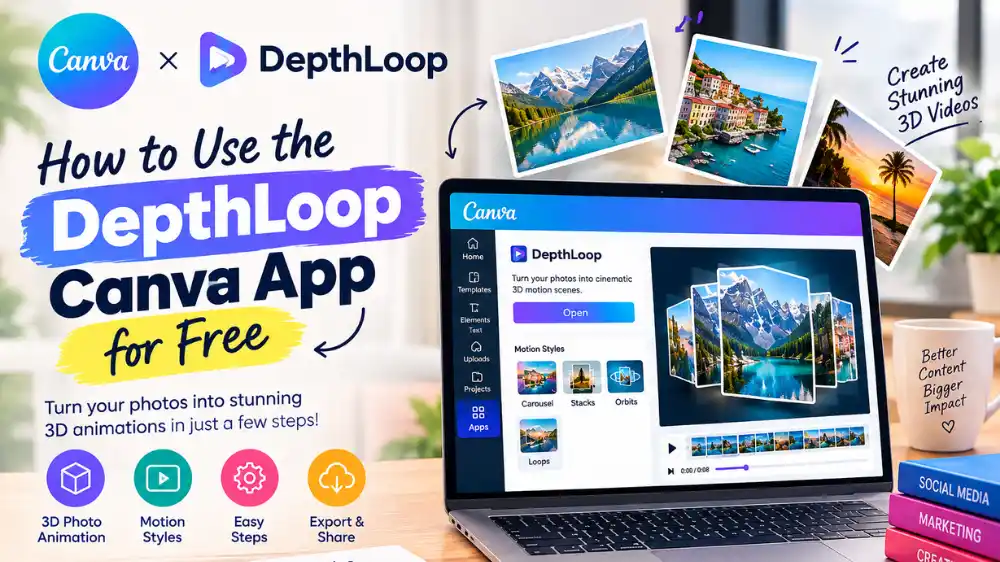
DepthLoop is a Canva app designed to transform photos into cinematic 3D motion scenes. Instead of presenting a collection of static images, it arranges them into animated compositions that create a sense of depth and movement.
According to its official Canva listing, the app supports several motion styles, including carousels, stacks, orbits, and loops. Users can adjust depth and timing before exporting their videos for presentations and social media.
For example, imagine you have five photographs from a product launch. Rather than placing them in a basic slideshow, you can use DepthLoop to arrange them into a moving visual composition. The result can make the photographs feel more engaging without requiring you to learn a professional 3D animation program.
How Does DepthLoop Work?
DepthLoop combines image placement, movement, and timing to create an animated scene. Depending on the available options, you can arrange photographs, choose a motion style, adjust the animation, and prepare the result for your intended design.
The process is particularly useful for people who want to improve their visual content without building an animation from scratch.
DepthLoop can be useful for:
- Instagram Reels and other short-form social media content.
- Product promotions and marketing campaigns.
- Travel photographs and personal memories.
- Business presentations and visual storytelling.
- Event announcements and promotional graphics.
- Creative portfolio projects.
It is important to remember that DepthLoop creates animated visual content rather than automatically producing an entire marketing campaign. You will still need to choose appropriate images, write any necessary text, and decide where the finished video will be used.
Is the DepthLoop Canva App Free to Use?
Yes. The DepthLoop app listing on Canva states that the app is free to use with any Canva plan. This makes it accessible to people who want to experiment with 3D photo animation without immediately paying for a separate subscription.
You can visit the official DepthLoop Canva app page to open the app and review its current availability.
However, there is an important distinction between the Canva app and DepthLoop Studio, the developer’s standalone browser-based product.
The official DepthLoop website advertises a free plan with 720p exports, a limited selection of templates and motion styles, and no credit card requirement. Its paid plans offer additional features, including 1080p exports and access to more templates and motion styles.
These are separate product offerings, so you should not assume that the pricing, export resolution, or feature limits of DepthLoop Studio automatically apply to the Canva app.
What Can You Do With the Free Version?
The available experience depends on the platform and the features currently offered within your account.
With the Canva app, you can explore DepthLoop’s photo-animation workflow and determine whether its motion styles suit your project. The standalone website also offers a free starting option with specified feature limits.
Before committing to a project, check the options shown in the version you are using. In particular, look at export settings, available animation styles, and any upgrade messages.
For most beginners, the sensible approach is to create one small test project before deciding whether a paid plan is necessary.
How to Use the DepthLoop Canva App for Free: Step-by-Step Tutorial
Getting started is relatively straightforward. You do not need previous experience with professional animation software to try the app.
Step 1: Open Canva and Sign In
First, visit Canva and sign in to your account. If you are new to Canva, create an account before continuing.
Once you are logged in, open the DepthLoop app listing in the Canva Apps Marketplace.
You can access it directly through this link:
Using the official listing helps you identify the intended app rather than unrelated animation tools with similar names.
Step 2: Open the DepthLoop App
On the app listing, select the option to open DepthLoop. Follow any instructions Canva displays to launch the app within your design.
Canva’s listing explains that users can select a design and allow DepthLoop to load in the Canva editor. If the app requests permission to interact with the design, review the permissions before proceeding.
If you cannot find the app immediately, return to the Canva Apps Marketplace and search for “DepthLoop.”
The exact interface may change as Canva updates its editor or the developer releases new versions.
Step 3: Prepare Your Photos
Before creating the animation, choose the images you want to use.
Good source images make a significant difference to the final result. For a product promotion, use clear photographs with consistent lighting. For a travel video, choose images that show different locations, perspectives, or moments from the same trip.
Try to avoid photographs that are excessively blurry, poorly lit, or crowded with competing visual elements.
For a first project, start with a small collection of three to six images. This gives you enough variety to experiment with movement without making the composition unnecessarily complicated.
If you are creating commercial content, make sure you have the necessary rights to use the photographs, especially when they include identifiable people, copyrighted artwork, or another company’s products.
Step 4: Choose a Motion Style
DepthLoop’s Canva listing describes several animation styles, including carousels, stacks, orbits, and loops.
Each style creates a different visual effect.
Carousel: Useful when you want several photographs to appear in a rotating or sequential presentation.
Stacks: Suitable for layered image arrangements that create a sense of depth.
Orbits: Worth exploring when you want a more dynamic composition with a sense of circular movement.
Loops: Useful for animations intended to repeat smoothly in social media content or presentations.
The best option depends on the story you want to communicate. A product showcase may benefit from a structured arrangement, while a travel montage may work better with a more flowing visual style.
Experiment with the available options before settling on one. A simple, well-composed animation often looks more professional than a design that uses too many competing effects.
Step 5: Adjust Depth and Timing
After selecting a motion style, explore the available settings for depth and timing.
Depth affects the spatial appearance of the composition, while timing influences how the animation progresses. The precise controls depend on the interface available in your version of the app.
If the movement feels too fast, look for a timing adjustment that makes the sequence easier to follow. If the images appear crowded, experiment with the depth or arrangement settings.
The goal is to create movement that supports the photographs instead of distracting viewers from them.
Preview the result before moving forward. Pay attention to whether the images remain easy to recognize and whether the animation feels appropriate for your audience.
Step 6: Review the Design and Export Your Video
Before exporting, check the entire animation from beginning to end.
Look for awkward transitions, images that appear too small, and any text that becomes difficult to read during movement. If the video will appear on a mobile screen, make sure the main subject remains visible.
When you are satisfied with the result, use the export options available in the app.
The exact export formats, resolutions, and settings may depend on the version you are using. Check the interface rather than assuming every option is included in the free experience.
If you plan to publish the animation on Instagram, TikTok, YouTube, or another platform, choose an output format and aspect ratio suitable for that destination whenever those settings are available.
Best Ways to Use DepthLoop for Social Media and Marketing
DepthLoop can be useful for more than personal photo animations. It can also support everyday content creation for businesses, creators, and marketing teams.
Create Animated Product Promotions
Small businesses can use product photographs to create more visually interesting promotional content.
For example, a skincare business might arrange several product images into an animated composition for a new-product announcement. A clothing brand could use photographs from a collection to create a short visual showcase.
Keep the product as the main focus. Use short text, consistent branding, and movement that makes the product easier to notice.
Make More Engaging Instagram Reels
Short-form video content is an important format for many creators and businesses.
DepthLoop can help transform a collection of photographs into a moving sequence that is more dynamic than a static collage. This can be useful when you want to reuse existing photographs instead of organizing a new video shoot.
For mobile-first content, prioritize clear images, readable text, and a strong opening visual. Check the available export settings to ensure the final video fits the platform where you intend to publish it.
Improve Business Presentations
Static slides can sometimes feel repetitive, particularly when a presentation contains several product images or photographs from a project.
An animated visual sequence can help introduce a new product, summarize a project, or present a collection of images. Create the animation first, then incorporate the exported video into your presentation if your workflow supports it.
Use animation selectively. Important information should remain easy to understand, even for people who are viewing the presentation on a smaller screen.
Turn Travel Photos Into Animated Stories
Travel creators can use DepthLoop to present photographs from different destinations in a more cinematic format.
A collection of city views, landscapes, food photographs, or memorable experiences can become a short animated story. Adding a clear title or a brief location label can make the result more informative.
Choose photographs that follow a logical sequence rather than combining unrelated images simply because they look attractive.
DepthLoop Canva App vs. DepthLoop Studio
Although the products share the DepthLoop name, they should not be treated as identical experiences.
The Canva app works within Canva’s design environment. DepthLoop Studio is a separate browser-based tool available through the developer’s website.
DepthLoop Studio advertises more than 50 motion styles, templates, browser-based MP4 exports, and controls for adding text, shapes, and visual effects. Its free plan has specific limitations, while paid plans provide access to additional capabilities.
If your primary goal is to create an animation within an existing Canva design, start with the Canva app.
If you want to explore the standalone editor’s broader workflow, visit DepthLoop Studio and review its current features and pricing.
Before choosing between the two, consider your preferred workflow, output quality, available controls, and whether the free version meets your requirements.
Tips for Getting Better Results With DepthLoop
You do not need complicated effects to create an effective animation. A few practical decisions can improve the final result considerably.
Use Consistent, High-Quality Images
Photographs with similar lighting, color tones, and visual quality usually work well together. If you are promoting a product, make sure the product remains recognizable throughout the animation.
Keep Text Short and Readable
Long paragraphs are difficult to follow in a moving scene. Use concise headlines, short descriptions, and clear calls to action when appropriate.
Match the Animation to the Message
A promotional video, personal travel montage, and educational presentation have different requirements. Select a motion style that suits the purpose instead of choosing an effect simply because it looks impressive.
Preview Before Publishing
Always review the exported video before sharing it publicly. Check the image quality, text placement, pacing, and overall presentation.
Respect Image Rights and Privacy
Use photographs you own, have permission to use, or are licensed to use for the intended purpose. Businesses should also consider consent and privacy when publishing photographs of customers or employees.
Frequently Asked Questions About the DepthLoop Canva App
What is DepthLoop in Canva?
DepthLoop is a Canva app that turns photographs into cinematic 3D motion scenes. Its listed features include carousel, stack, orbit, and loop styles, along with depth and timing adjustments.
Can I use the DepthLoop Canva app for free?
Yes. The official Canva listing describes DepthLoop as free to use with any Canva plan. Available features and export options may vary, so check the app before beginning a large project.
Do I need animation experience to use DepthLoop?
No advanced animation experience is required to get started. You can begin with a few photographs, explore the available motion styles, and adjust the settings to suit your project.
Can I use DepthLoop for Instagram Reels?
You can create animations intended for social media and check the available export settings for your intended platform. Make sure the final video uses an appropriate aspect ratio and keeps important content visible on mobile screens.
Is DepthLoop the same as Canva’s built-in animation tools?
No. DepthLoop is a separate app available through Canva’s Apps Marketplace. Canva also provides its own design and animation features, so the available workflows and controls are different.
Does DepthLoop Studio have a free plan?
Yes. The official DepthLoop Studio website advertises a free plan with 720p exports, limited templates and motion styles, and no credit card requirement. Its paid plans offer additional features.
Can I use DepthLoop for commercial projects?
You can explore it for business and marketing content, but you should review the applicable terms, image rights, privacy requirements, and the rules of the platform where you intend to publish the result.
Where can I find the DepthLoop Canva app?
Visit the official DepthLoop listing on Canva. You can also search for DepthLoop in Canva’s Apps Marketplace.
Final Thoughts
The DepthLoop Canva app is worth trying if you want to create animated 3D photo scenes without learning a complex animation program. It offers a straightforward way to experiment with moving image arrangements for social media, marketing materials, presentations, and personal projects.
Start with a small collection of photographs, test different motion styles, and preview the results before exporting. If the Canva app does not provide the controls or output options you need, compare it with the standalone DepthLoop Studio editor before considering an upgrade.
The most effective animation is not necessarily the one with the most effects. It is the one that presents your images clearly, supports your message, and gives viewers a reason to keep watching.