Rankadmain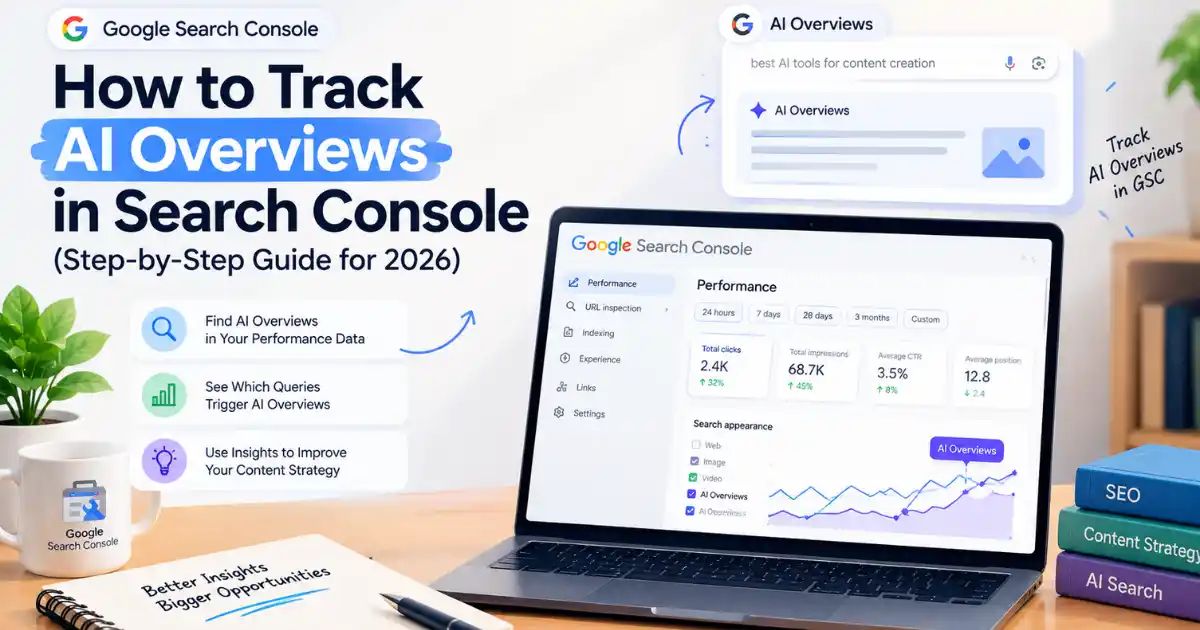
Short answer: To track AI Overviews in Search Console, open the Generative AI performance report, found under Performance. It shows how many times your pages appeared as links inside AI Overviews and AI Mode, broken down by page, country, device and date. Clicks from those features are not separated; they are counted in your regular Performance report under the “Web” search type.
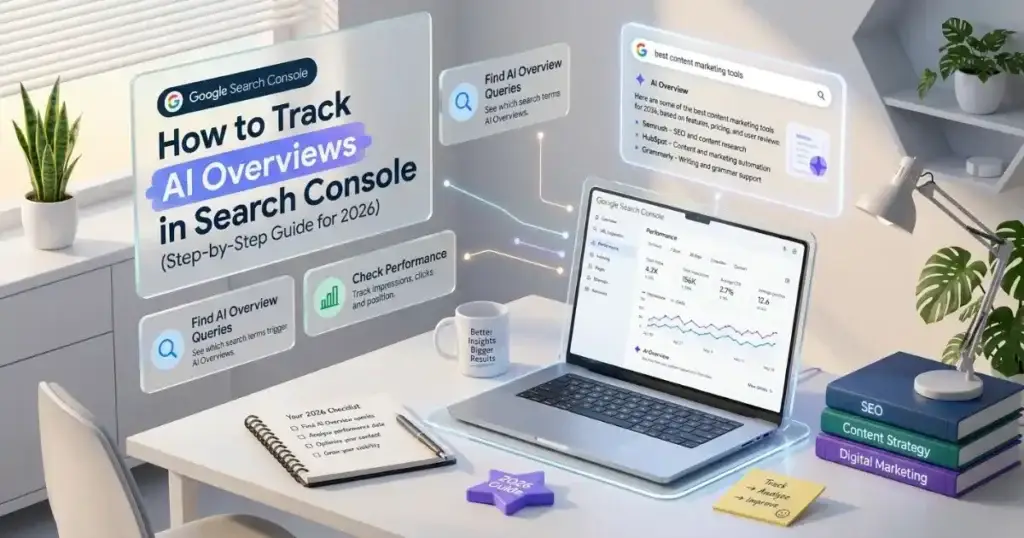
If you publish content about SEO, AEO or GEO, you probably want to know one thing: is Google’s AI actually showing my pages? This guide shows you how to track AI Overviews in Search Console: where to find the data, how to read it, what it cannot tell you, and what to do with it.
Key Takeaways: How to Track AI Overviews in Search Console
- Google launched dedicated Generative AI performance reports in Search Console in June 2026, with separate views for Search and Discover.
- The report is the core of how to track AI Overviews in Search Console, but it measures impressions only. Clicks stay inside the classic Performance report.
- AI Overviews and AI Mode are reported together, not as two separate lines.
- If you do not see the report, your site may not have enough AI impressions yet. That absence is itself a signal.
- Google says there are no special requirements or extra markup needed to appear in AI features. Strong, indexable, helpful content is the requirement.
What Does It Mean to Track AI Overviews in Search Console?
AI Overviews are the AI-generated summaries that appear above or alongside traditional results. AI Mode is Google’s conversational search experience, built for longer, multi-step questions. Both use a technique called query fan-out, where Google runs several related searches behind the scenes and then shows a wider set of supporting links than a classic results page.
“Tracking” these features means answering three questions:
- Are my URLs being shown as supporting links in AI features?
- Which pages, countries and devices drive that visibility?
- Is that visibility growing, flat or declining over time?
Search Console now answers the first three directly. It does not answer which prompts triggered your appearance, and it does not tell you whether an AI answer mentioned your brand by name. Keep that limit in mind as you read the rest of this guide.
If the terminology is new to you, start with our primer on Answer Engine Optimization (AEO) and our comparison of AEO vs GEO vs SEO.
Is the Generative AI Report Available in Your Search Console?
Google introduced the new reports in its Search Central Blog announcement. The rollout was phased. According to Search Engine Journal, Google later said the reports had reached all websites worldwide, although Google’s help pages still noted that not every property has access yet.
There is one more catch: sites without enough AI-feature impressions may not see a report at all. So if the report is missing for your property, it usually means one of two things:
- The rollout has not reached your property yet, or
- Your site has not appeared in AI Overviews or AI Mode often enough to generate data.
Do not panic if you are a new site. Learning how to track AI Overviews in Search Console starts with that baseline, so treat it as a starting point and follow the optimization steps later in this article.
Step-by-Step: How to Track AI Overviews in Search Console
Step 1: Verify your site in Search Console
You need a verified property. If you have not done this, follow Google’s guide to verifying your site in Search Console. Using a Domain property gives you the cleanest, most complete data across subdomains and protocols.
Step 2: Open the Performance Report to Track AI Overviews
In the left sidebar, open Performance. Depending on your account and rollout stage, you will see the generative AI view listed there or as a dedicated tab next to the standard Search results report. Labels can vary slightly, so look for the wording “Generative AI”.
Step 3: Choose Search or Discover
The reports are split:
- Search: impressions from AI Overviews and AI Mode on Google Search.
- Discover: impressions from generative AI features inside Google Discover.
Most blogs should start with the Search view.
Step 4: Read the metrics
Google’s announcement lists the data you can analyze:
| Metric | What it tells you |
|---|---|
| Impressions | How often your URLs appeared in generative AI features |
| Pages | Which URLs were shown |
| Countries | Where the visibility happens |
| Devices | Mobile, desktop or tablet (Search view) |
| Dates | Trends with hourly, daily, weekly and monthly granularity |
Step 5: Set a date range and export
Choose at least 28 days so short-term noise does not mislead you. Export the table so you can compare it against your classic Performance data in a spreadsheet. This export step is the most useful habit in how to track AI Overviews in Search Console over time. If you want help automating that analysis, see our guide on how to connect Claude to Google Sheets, Slack and WordPress.
Where Do AI Overview Clicks Show Up?
This is the part that confuses most site owners. The Generative AI report shows impressions. Clicks on links inside AI Overviews and AI Mode are counted in the regular Performance report, inside the Web search type, mixed with all other web clicks. Google’s AI features documentation confirms that sites appearing in AI features are included in the overall search traffic reported there.
Practical consequences:
- You cannot filter “AI Overview clicks” as a clean segment.
- You can compare AI impressions per page against total clicks per page and look for pages that gain both.
- You should track the same pages in Google Analytics for engagement. Google has noted that clicks from results pages with AI Overviews tend to be higher quality, meaning visitors are more likely to spend more time on the site.
How to Read the Data After You Track AI Overviews in Search Console
Raw impressions are not insight. Use this repeatable workflow every month.
1. Build a page-level comparison
Pull two exports for the same date range: the Generative AI report (impressions by page) and the classic Performance report (clicks and impressions by page). Place them side by side.
2. Sort pages into four groups
- High AI impressions, healthy clicks: your model pages. Study their structure and replicate it.
- High AI impressions, low clicks: the AI answer may be satisfying users without a visit. Improve your title, intro and the value only your page can add.
- Low AI impressions, strong classic rankings: the content ranks but is not easy for AI to extract. Restructure it.
- No impressions anywhere: check indexing first.
3. Check indexing and snippet eligibility
Google states that to be eligible as a supporting link in AI Overviews or AI Mode, a page must be indexed and eligible to appear in Search with a snippet. There are no additional technical requirements. Use the URL Inspection tool to confirm the page is indexed and has not been blocked by nosnippet or noindex.
4. Watch trends, not single days
AI features do not trigger on every query. Google says AI Overviews appear only when its systems decide they add value beyond classic Search. Expect fluctuations. A rising 4-week average matters more than one spike.
What the Report Cannot Tell You
Being honest about limits keeps your strategy realistic when you learn how to track AI Overviews in Search Console. The AI report does not show:
- The exact prompts or queries that triggered an AI appearance.
- A separate click count for AI features.
- Whether ChatGPT, Perplexity, Claude or Gemini cited you. It covers Google features only.
- Whether your brand was mentioned in text without a link.
For visibility outside Google, you need manual checks or third-party AI visibility tools. This is where Generative Engine Optimization (GEO) goes beyond a Google-only view. Our article on SEO vs GEO explains why a site needs both.
How to Improve Your AI Overview Visibility
Google’s own guidance is refreshingly simple: the best practices for SEO remain relevant, and there are no extra requirements or special optimizations needed for AI Overviews or AI Mode. That does not mean all content performs equally, so once you know how to track AI Overviews in Search Console, use the data to improve what you publish. These practices consistently help pages get understood and reused:
- Lead with the answer. Put a direct 40-60 word answer under each question heading, then expand. Our walkthrough on how to create AEO content shows the exact format.
- Cover the topic, not just the keyword. Because of query fan-out, a page that answers related sub-questions has more chances to be retrieved.
- Use clear headings and short paragraphs. Make important content available as plain text, not hidden in images or scripts.
- Strengthen internal links. Google recommends making content easy to find through internal links. Link related guides together so crawlers and readers see how your topics connect.
- Keep structured data honest. Google says markup must match the visible text, and no special schema is required for AI features. Use FAQ or Article markup only where it reflects real content on the page.
- Add original value. Screenshots of your own Search Console, first-hand examples and clear explanations give AI systems a reason to link to you rather than a generic source.
- Maintain page experience. Fast, readable, mobile-friendly pages support every search feature.
- Refresh regularly. Update dates and facts when Google changes the report or interface.
Should You Opt Out of AI Features?
Google also released a control that lets site owners opt out of appearing in generative AI features without losing traditional search visibility. Before you decide, use what you learned about how to track AI Overviews in Search Console and look at your own impressions in the Generative AI report. If your pages already earn meaningful visibility there, opting out removes a growing discovery channel. If you have strong reasons, such as licensing concerns, review Google’s documentation on preview controls such as nosnippet, max-snippet, and noindex in the AI features guide.
Common Mistakes to Avoid
Most errors in how to track AI Overviews in Search Console come from misreading the data. Avoid these:
- Assuming no report means a penalty. It usually means too few AI impressions or a rollout delay.
- Chasing a “magic” AI file or schema. Google states you do not need machine-readable AI files or special markup.
- Judging success by clicks alone. AI visibility can build awareness before it builds traffic.
- Ignoring non-Google engines. Search Console covers Google only.
- Checking daily. Daily numbers are volatile; review weekly and monthly.
A Simple Monthly Routine to Track AI Overviews in Search Console
- Export the Generative AI report and classic Performance data.
- Update a spreadsheet with impressions, clicks and CTR by page.
- Flag the top 10 pages by AI impressions.
- Improve two underperforming pages using the answer-first checklist.
- Re-check indexing for any page with zero impressions.
- Log what you changed so you can connect results to actions.
Frequently Asked Questions
How to track AI Overviews in Search Console?
The simplest way is this: open your verified property, go to Performance, and select the Generative AI report for Search. It shows impressions from AI Overviews and AI Mode by page, country, device and date. To see clicks, use the classic Performance report under the Web search type.
Can I see AI Overview clicks separately in Search Console?
No. The Generative AI report shows impressions. Clicks from AI Overviews and AI Mode are counted in the standard Performance report under the Web search type, with no dedicated filter.
Does the report separate AI Overviews from AI Mode?
No. The two features are reported together in the same view.
Why can’t I see the Generative AI report?
Either the rollout has not reached your property, or your site has not received enough AI-feature impressions to display a report.
Do I need special schema to appear in AI Overviews?
No. Google states there is no special structured data or extra markup required. Your pages must be indexed and eligible to show with a snippet.
Is tracking AI Overviews part of SEO, AEO or GEO?
All three. Google treats optimizing for these features as part of SEO, AEO focuses on structuring direct answers, and GEO extends visibility to other generative engines. Read our guide to Answer Engine Optimization for the full picture.
Final Thoughts on How to Track AI Overviews in Search Console
Search Console now gives site owners their first official view of AI Overviews and AI Mode visibility, and this guide has shown you how to track AI Overviews in Search Console step by step. It is not perfect: impressions only, no separate clicks, no prompt data. But it is a real baseline, and baselines are what let you improve. Now that you know how to track AI Overviews in Search Console, verify your property, open the report, compare it with your classic Performance data, and fix the pages that need work. Review monthly, and keep your content clear, original and easy to extract.